ExerciseMedium•00:00•30 min
Adding and Configuring Components
Objectives
0/3Components allow you to build out the content of your page. These are added within the structure provided by the template.
Steps
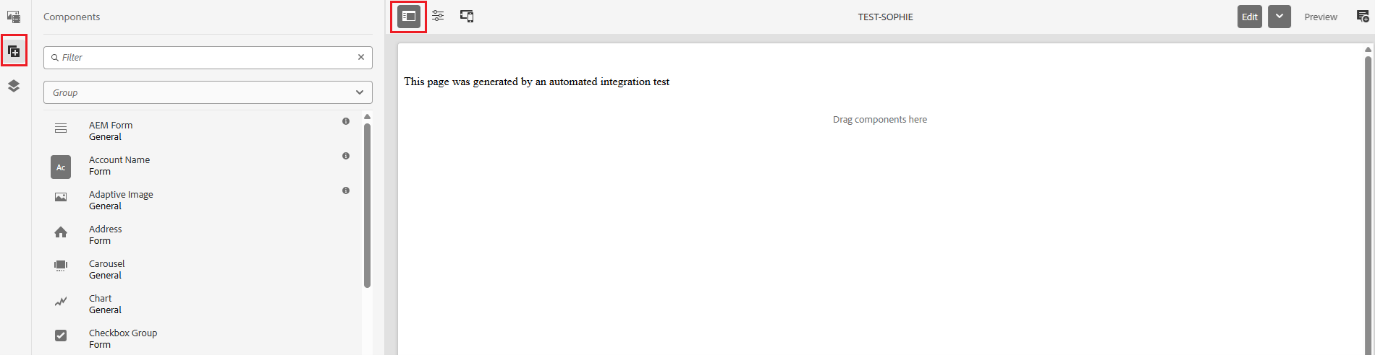
- Once in the Page Editor, ensure you select the grey button on the top middle of the page (highlighted below). A toolbar should then appear on the left-hand side of the screen. From here select the Plus icon (also highlighted). This will then show the available list of components you can add to your page:
-
You will add 4 components to your page and search for their name in the top of the toolbar. The components are (just search for the first word of the below):
- Title General
- Text General
- Text & Image General
- Video General
-
Search for each and hold and drag each component onto the page one after the other in the above order. A blue arrow will appear on the page of where to drop each component.
- You can now close the toolbar on the left by selecting the same grey button as shown above on the top of the screen.
- To start adding content to each component, simply click on each component and follow the below steps for each component. Add the content of your choice. For the images and copy, search for stock images online.
- Title: Select the Pencil icon to add the main title of your page
- Text: Select the Pencil icon to add the main copy of the page. You can also select how to align the copy (left, right or central), include bullet points or numbering or to make the copy bold, italic or underlined.
- Text & Image: Select the Spanner icon and select the 'Image Properties' tab on the pop-up. Here you can add an image from a folder, Alt Text (for the image) Title and Description.
- Video: Select the Spanner icon to add a video from a folder.
- You can also change the width of each component by selecting each component and selecting the double ended arrow on the right of the toolbar. Here you can drag the component inwards or outwards to be left aligned, right aligned or central aligned.
- To see how the page would look live, simply select the 'Preview' button on the top right of the screen. To go back to edit mode, select the 'Edit' button on the top right, again.
- Your page is now complete!